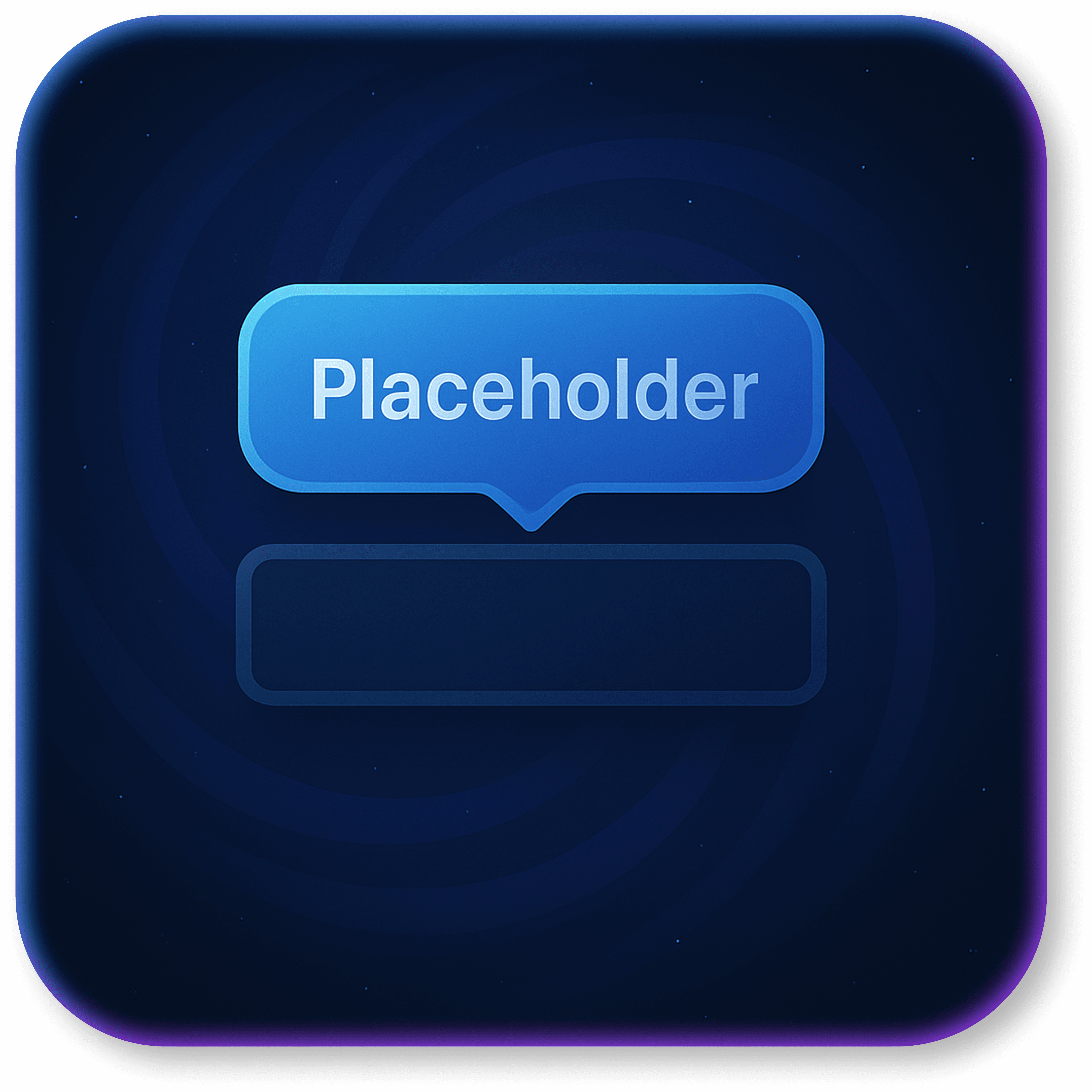
Smart Input Placeholders
31
Overview
The Smart Input Placeholders plugin applies dynamic placeholders to Bubble input fields, offering two modes: Adaptive (shifts the text on focus) and Balloon (floats above like a label). This makes forms more readable, reduces errors, and increases completion rates.
Quick Setup
Input ID: specify the target input’s ID (e.g., email_input).
Style: choose Adaptive or Balloon.
Focus color: customize the placeholder color when the field is focused.
Compatible with Repeating Groups and Dynamic IDs.
Tip: Experiment with sizes and colors to create unique interactions. When to Use
Signup/login forms.
Checkout flows with multiple fields.
Mobile apps focused on readability.
Interfaces using dark mode or a minimalist layout.
Benefits
Clear visual feedback for active fields.
Fewer errors and reduced form abandonment.
Consistent design across all screen sizes.
Smooth transitions with strong performance.
Key Features
Two styles (Adaptive / Balloon).
Smooth, configurable transitions.
Support for dynamic IDs and Repeating Groups.
Compatible with Bubble’s Responsive Engine.
Installation
In the Bubble editor, go to Plugins → Add plugins and install Nebula – Smart Input Placeholders.
Add the plugin element to the page containing the inputs.
How to Use
1) Input ID: set the target input’s ID (e.g., email_input).
2) Style: select Adaptive or Balloon.
3) Focus color: choose the placeholder color on focus (e.g., #9AA0FF).
4) RG/Dynamic: when using Repeating Groups, assign dynamic IDs for each cell.
Best Practices
Use unique IDs per field to avoid conflicts.
Test on desktop/mobile and in light/dark themes.
Avoid external CSS that repositions placeholders.
Troubleshooting
Effect not showing: verify the input ID and confirm the plugin element is on the same page.
Overlap in RGs: use dynamic IDs per cell.
Color not applying: review global styles/theme and any custom CSS.